How WordPress Slack Notifications Work for Contact Forms
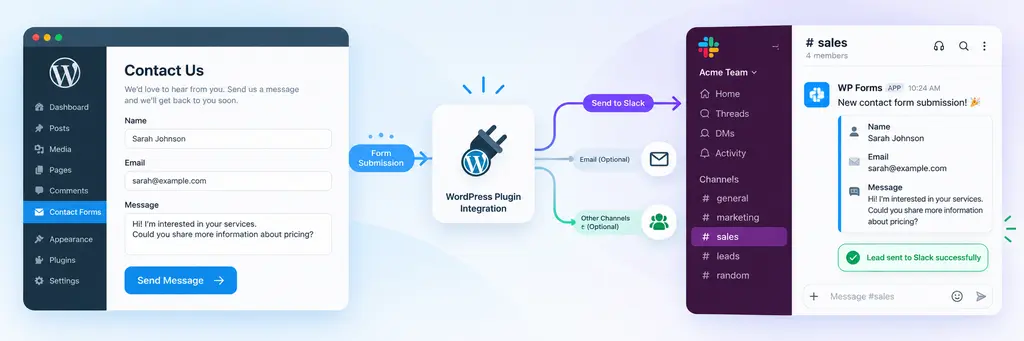
A contact form on its own only knows how to send email. To get a submission into a team channel the moment it happens, something has to sit between the form and Slack: a mechanism that catches the form’s WordPress hooks, reads the submitted fields, and turns them into an HTTP request that Slack understands. This is what makes wordpress slack notifications possible without anyone manually checking an inbox.
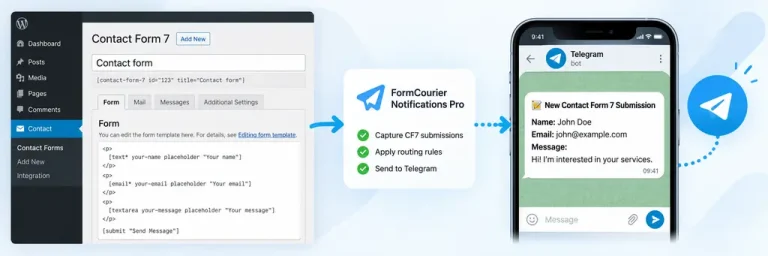
FormCourier Notifications Pro handles this bridge. When a supported form is submitted, the plugin captures the data, builds a message from a configured template, and sends it to a destination connected through a Slack Incoming Webhook — a URL that Slack generates for a specific channel and that accepts plain HTTP POST requests. The practical result: slack and wordpress work together without the form plugin itself needing any Slack-specific code, and without anyone building a custom integration from scratch.
It helps to keep the three layers separate from the start. The form plugin (Contact Form 7, WPForms, Fluent Forms, Forminator, Ninja Forms, or Gravity Forms) owns the form itself — fields, validation, the on-site submission flow. FormCourier Notifications Pro owns the delivery and routing logic — deciding where a submission goes and how it’s formatted. Slack is an external service with its own webhook mechanics and its own limits, which the plugin has to respect rather than override. That distinction matters later, especially when something doesn’t arrive and you need to figure out which layer is responsible.
How to Connect WordPress Contact Forms to Slack
Setting up a slack wordpress integration involves three concrete pieces: a webhook URL from Slack, a destination configured in the plugin, and a form assigned to that destination.
Create a Slack Incoming Webhook
The webhook is generated on Slack’s side, through the workspace’s app or integration settings, and tied to one specific channel. Slack issues a unique URL for that webhook — this URL is effectively the credential, so it should be treated the same way as a password. FormCourier Notifications Pro doesn’t create this webhook for you; it only uses one that already exists in your Slack workspace.
Add a Slack Destination in WordPress
Inside the plugin, a Slack destination stores that webhook URL along with a label so you can identify it later. Nothing is sent until this destination is linked to an actual form, but at this stage you can already send a test message to confirm the webhook works before connecting real submissions to it.
Select the Contact Form to Notify
Once the destination exists, you choose which form should use it. The plugin detects fields on supported forms automatically, which is what later allows those fields to appear inside message templates and routing conditions. A site isn’t limited to one webhook for everything — multiple Slack destinations can coexist, each tied to different forms or channels.
How to Set Up WordPress Slack Notifications
The core wordpress slack notifications setup follows a simple sequence, but a few default behaviors are worth understanding so the configuration matches how your team actually works.
Choose a Default Slack Destination
If a form has no specific destination assigned, the plugin falls back to a default Slack destination configured for the channel. This means a new form added to the site doesn’t go unnoticed — it inherits sensible delivery behavior — but it also plateaus the setup: submissions from an unconfigured form land wherever the default points, not necessarily where a given team expects them.
Assign Slack Destinations to Individual Forms
Beyond the default, individual forms can be pointed at a specific destination through a Form Route. This is separate from the default fallback and separate from conditional routing based on field values — a Form Route simply says “this form always goes here,” regardless of what was typed into it.
Send a Test Slack Message
Before relying on the integration, sending a test message from the destination’s settings confirms the webhook is valid and that Slack accepts the request. This step catches a mistyped or expired webhook URL early, rather than after a real visitor has already submitted the form.

Using a WordPress Slack Plugin for Form Notifications
A wordpress slack plugin like FormCourier Notifications Pro is only useful if it actually understands the form plugin generating the submission. Support here isn’t automatic for every plugin on the market — it’s limited to a confirmed list, and it’s worth being specific about what “support” means in practice.
Connect Supported WordPress Form Plugins
The confirmed list covers Contact Form 7, WPForms, Fluent Forms, Forminator, Ninja Forms, and Gravity Forms. For each of these, the plugin can detect the form’s fields, which is what enables per-field placeholders and field-based routing later on. A form builder not on this list won’t work simply because the slack plugin wordpress setup can, in general, read forms — detection and support are tied to the specific integrations that have been built.
Configure Form-Specific Message Templates
Each form can use its own message template instead of a single generic one for the whole site. If no custom template is set, the plugin falls back to a default template, so messages are still readable even without per-form configuration. This is useful when, say, a quote request form and a newsletter signup form need to surface completely different information in Slack.
Use Form Field Placeholders in Slack Messages
Templates support placeholders such as {form_name}, {submitted_at}, {page_url}, {site_name}, {all_fields}, and {field:FIELD_NAME} for pulling out one specific value. {all_fields} is the simplest option when you just want everything the visitor entered; {field:FIELD_NAME} is more precise when a message should lead with, say, a phone number or a selected service. Slack messages are delivered as plain text built from this template — there’s no interactive layer of buttons or slash commands involved, since the integration runs through an Incoming Webhook rather than a full Slack app.
How to Route Contact Form Notifications to Different Slack Destinations
Once more than one form or more than one team is involved, sending everything to the same channel stops being practical. This is where routing — as distinct from the default-destination behavior described earlier — starts to matter.
Use Different Slack Destinations for Different Forms
Because the plugin supports multiple Slack destinations, a support request form and a sales inquiry form can be assigned to two different channels through their own Form Routes, without either affecting the other’s configuration.
Route Submissions by Form Field Values
For routing that depends on what was actually submitted — a region field, a plan type, an urgency flag — Advanced Routing evaluates one or more routing rules against submitted data. A rule can require that all of its conditions match (ALL / AND) or that just one of them does (ANY / OR). This is a distinct mechanism from a Form Route: a Form Route sends every submission from a form to the same place, while Advanced Routing looks at what’s inside the submission before deciding.
Add or Replace Destinations with Advanced Routing
When a rule matches, it can either add destinations on top of whatever the Form Route already selected, or replace them entirely. Priority controls the order in which multiple rules are evaluated, and Stop Processing lets a matching rule prevent any further rules from being checked afterward. Worth being clear about the scope here: this is a routing mechanism built specifically for notification destinations, not a general-purpose workflow builder standing in for a tool like Zapier.
| Routing Element | What It Controls |
|---|---|
| Default Slack destination | Where submissions go when a form has no specific configuration |
| Form Route | A fixed destination (or destinations) assigned to one form, regardless of field values |
| Advanced Routing rule | A condition-based rule evaluated against submitted field data |
| ALL / AND | Requires every condition in the rule to match |
| ANY / OR | Requires only one condition in the rule to match |
| Add destinations | Appends destinations to what was already selected |
| Replace destinations | Overrides destinations selected by the Form Route |
| Priority | Determines the order rules are evaluated in |
| Stop Processing | Halts evaluation of further rules once this one matches |
Test and Troubleshoot WordPress Slack Notifications
Confirming a webhook works in isolation isn’t the same as confirming the full path from a real visitor to a real channel message.
Submit a Test Contact Form
Filling out the form as a visitor would exercises the entire chain — the form plugin’s own submission handling, whatever routing rules apply, and the final delivery through the destination’s template. This step tends to surface problems a webhook-only test can’t, such as a routing rule pointing at the wrong destination.
Check the Delivery Log
Every attempt is recorded in a delivery log showing the notification channel, destination, status, HTTP status code, the provider’s response, and how many attempts have been made. When a message doesn’t appear in Slack, this log is the fastest way to tell whether the request reached Slack at all or failed before it was even sent.
Retry Temporary Slack Delivery Errors
Not every failure needs manual attention. Temporary issues — network errors, rate limits, and certain server-side errors from Slack — are eligible for automatic retry through WP-Cron, with increasing intervals between attempts, alongside the option to trigger a manual retry from the log. Permanent configuration problems, like an invalid or revoked webhook URL, won’t be fixed by retrying and need to be corrected in the destination settings directly. No retry mechanism can promise guaranteed delivery in every situation.
Check Slack Rate Limits and Retry-After
When Slack responds with a rate-limit signal, it typically includes a Retry-After value indicating how long to wait. The plugin accounts for this when scheduling its next attempt rather than retrying immediately, which reduces the chance of the same request being rejected again right away.