When a visitor submits a form on a WordPress site, the standard reaction is an email notification. Email is reliable, but it’s also easy to miss, especially if a site owner or support team checks messages only a few times a day. For teams that already live inside a messenger, moving form notifications into Telegram removes that delay and puts new leads, support requests, or bookings directly into a chat people are already watching.
This article walks through how WordPress and Telegram can be connected for form notifications, what’s required to set it up, how to configure delivery with FormCourier Notifications Pro, and how to troubleshoot notifications that don’t arrive.
How WordPress and Telegram Can Work Together
WordPress form plugins such as Contact Form 7, WPForms, Fluent Forms, Forminator, Ninja Forms, and Gravity Forms collect submissions and, by default, forward them by email. A wordpress telegram integration adds a second delivery path: instead of (or in addition to) email, the submitted data is sent as a message to a Telegram chat, group, or channel through the Telegram Bot API – Telegram’s interface for sending and receiving messages programmatically through a bot account.
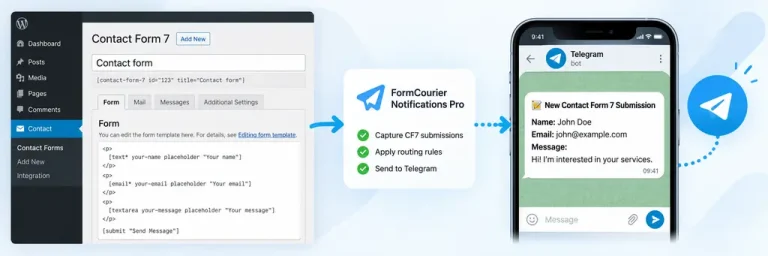
To make this work, something has to sit between the form plugin and Telegram: it needs to detect a new submission, pull out the relevant fields, format them into a readable message, and send an HTTP request to Telegram’s servers. FormCourier Notifications Pro is built specifically for that role. It listens for submissions from the supported form plugins, formats them using a message template, and delivers them to one or more configured Telegram destinations, based on how Form Routes and Advanced Routing are set up for that form. This makes telegram for wordpress notifications a configuration task rather than a custom development project.
WordPress to Telegram Notification Workflow
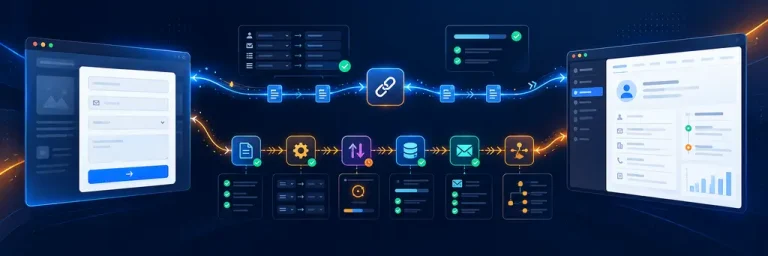
At a high level, a wp telegram notification follows a consistent path: a visitor submits a form, the plugin captures the submitted fields, it checks whether a specific Form Route or Advanced Routing rule applies to that form, it renders the message template with the actual submission data, and it sends the result to the matched Telegram destination. The outcome – success, failure, or a retry – is then recorded in the delivery log, which is covered later in this article.
What You Need to Send WordPress Forms to Telegram
Before configuring anything in WordPress, a few things need to exist on the Telegram side and the plugin side:
- A supported WordPress form plugin. FormCourier Notifications Pro works with Contact Form 7, WPForms, Fluent Forms, Forminator, Ninja Forms, and Gravity Forms.
- A Telegram bot. Bots are created outside WordPress, through Telegram’s own BotFather. FormCourier Notifications Pro does not create the bot itself – this is a manual, one-time step on Telegram’s side.
- A Bot Token. This is the credential BotFather issues for the bot; it authenticates requests made through the Telegram Bot API.
- A Chat ID. This identifies the specific chat, group, or channel that should receive messages. The bot must have access to the destination chat – it needs to be added to the group or channel (or have started a conversation, for a private chat) before it can deliver messages there.
- FormCourier Notifications Pro, installed and activated, with at least one Telegram destination configured using the Bot Token and Chat ID above.
This combination – a wordpress telegram bot, its token, and a chat ID – is the minimum required for any Telegram destination to function, whether it’s the site’s default destination or one assigned to a specific form.
How to Send WordPress Form Submissions to Telegram
Once the bot and chat exist, connecting wordpress to telegram delivery in FormCourier Notifications Pro follows a straightforward sequence:
- Create the Telegram bot through BotFather and copy the Bot Token it generates.
- Add the bot to the destination chat (a group, channel, or direct conversation) so it’s able to send messages there.
- Retrieve the Chat ID for that destination – this is typically done by sending a message in the chat and checking the bot’s recent updates.
- Add a new Telegram destination in FormCourier Notifications Pro, entering the Bot Token and Chat ID.
- Assign the destination, either by setting it as the default Telegram destination for the site or by attaching it to a specific form through a Form Route.
- Send a test message from the destination settings to confirm the bot can actually deliver to that chat before relying on it for live submissions.
From this point, matching form submissions are automatically formatted and sent to Telegram, with delivery outcomes tracked in the logs.
Customize Telegram Messages for Form Submissions
Raw submission data isn’t very readable on its own, so FormCourier Notifications Pro renders each notification through a message template before sending it. There’s a default template used across forms, and individual forms can have their own per-form template that overrides it; if a form has no custom template, delivery falls back to the default automatically.
Templates support placeholders that are replaced with actual values at send time:
- {form_provider} / {provider} – the form plugin that generated the submission
- {form_id} / {form_name} – which form was submitted
- {destination} – the destination the message was sent to
- {submitted_at} – when the submission occurred
- {all_fields} – a formatted block containing the prepared submission data
- {page_url}, {site_name}, {site_url} – context about where the form was submitted
- {date}, {time} – separate date and time values
- {field:FIELD_NAME} – the value of one specific detected field
{field:FIELD_NAME} is useful when a message needs to highlight a particular answer – a phone number or a selected service, for example – rather than dumping every field. The exact field identifier depends on how the form and its provider name that field internally, so it’s worth checking a test submission before relying on a specific field placeholder in production.
Telegram messages also support Telegram’s own HTML formatting, so templates can use bold text, links, and line breaks to make longer submissions easier to scan in the chat.

Send Different WordPress Forms to Different Telegram Destinations
A site rarely has just one form and one purpose. A contact form, a quote request, and a support form usually deserve different audiences – and FormCourier Notifications Pro supports multiple Telegram destinations rather than a single fixed chat.
Two mechanisms control where a submission goes:
- Form Routes assign a specific destination (or set of destinations) to a specific form. If a form has no route configured, it falls back to the relevant default destination.
- Advanced Routing adds conditional logic on top of that, evaluating the actual submitted field values. Rules can require every condition to match (ALL / AND) or just one (ANY / OR), and a matching rule can either Add destinations to what a Form Route already selected or Replace destinations entirely. Priority controls the order in which rules are evaluated, and Stop Processing lets a matched rule prevent any further rules from running.
The distinction matters in practice: a Form Route decides the baseline destination for a form, while Advanced Routing reacts to what was actually submitted – for example, sending high-value quote requests to one chat and general inquiries to another, based on a field’s value.
| Aspect | Form Route | Advanced Routing |
|---|---|---|
| What it evaluates | The form itself | The submitted field values |
| Conditional logic | No | Yes (ALL/AND, ANY/OR) |
| Destination behavior | Assigns destinations to a form | Can add to or replace destinations |
| Execution order | Applied per form | Ordered by Priority, can Stop Processing |
| Typical use | “This form goes to this Telegram chat” | “This form goes here, unless a field says otherwise” |
Test Telegram Notifications and Check Delivery Logs
Before trusting any destination with real submissions, FormCourier Notifications Pro allows sending a test message directly from the destination settings, confirming the Bot Token and Chat ID are valid and that the bot can actually post to that chat.
Ongoing visibility comes from the delivery log, which records each notification attempt with details including the notification channel, destination, form provider, form, status, timestamp, number of attempts, HTTP status returned by Telegram, the provider’s response, the last error (if any), retry state, and the next scheduled retry time. Logs can be filtered by channel, form provider, status, or destination, searched by text, narrowed to a date range, exported as CSV, and paged through for larger sites. Summary counters give a quick view of overall delivery health without opening individual entries. Older log entries can also be cleared automatically rather than accumulating indefinitely.
Troubleshoot Failed WordPress to Telegram Notifications
Most delivery problems fall into a small set of recurring causes, and the log entry for a failed attempt usually points directly at one of them:
- Bot not added to the chat – the Chat ID is correct, but the bot itself was never added as a member, so Telegram rejects the request.
- Incorrect Chat ID or Bot Token – a copy-paste error at setup time; the HTTP status and provider response in the log typically indicate an authentication or “chat not found” error.
- Rate limits – Telegram limits how frequently a bot can send messages to a chat; a burst of submissions can trigger temporary throttling.
- Deleted or inaccessible chat – if a group is deleted or the bot is removed after setup, delivery starts failing until a new destination is configured.
- Temporary network or server-side errors – brief connectivity issues on either side.
For temporary issues – network failures, rate limits, and some short-lived server errors – FormCourier Notifications Pro retries delivery automatically using WP-Cron, with increasing intervals between attempts, and a failed notification can also be retried manually from the log. Permanent configuration problems, like an invalid token or a chat the bot no longer has access to, aren’t something a retry can fix on its own; those need the destination settings corrected before delivery will succeed again. To support a retry without asking the visitor to resubmit the form, a failed delivery may retain the minimum data needed to attempt sending it again – this retry payload exists to recover the notification, not as a general-purpose submission archive; the delivery logs are a record of delivery activity, not a CRM database.
 FAQ
FAQ