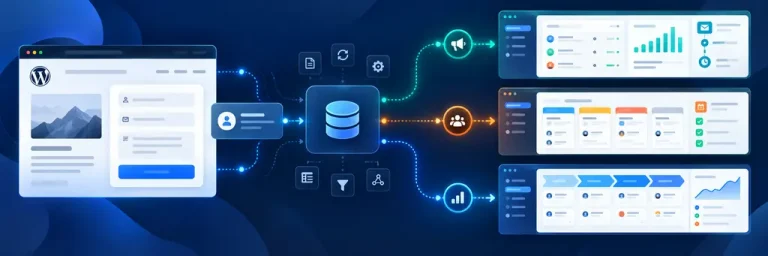
A website form can reliably collect inquiries, but that does not guarantee that every submission will reach an employee and be processed. Problems often arise at the intermediate stage: the data arrives in WordPress or by email, after which it has to be manually transferred to the working system.
Automatic delivery removes this step. FormCourier CRM Pro connects the selected WordPress form to one connected CRM, maps the fields, and sends the received data according to the plugin settings.
Why Website Submissions Can Get Lost During Manual Processing
When a website is used as a source of inquiries, the processing workflow often consists of several separate steps. A visitor submits a form, the message arrives by email or is stored by the form plugin, then an employee opens the submission and manually transfers the necessary information to the working system.
The more intermediate steps there are, the higher the risk of human error. An inquiry may be noticed too late, missed among other emails, transferred without all fields, or entered with an incorrect phone number or email address.
That is why a CRM for inquiries is useful not only as a place to store information. What also matters is how data moves from the website to the system where employees continue working with the inquiry.
The search phrase “CRM inquiries” is often connected with exactly this task in practice: how to make sure a user’s inquiry does not remain only in WordPress or an email inbox, but moves into a centralized system without unnecessary manual steps.
Automation becomes especially important as the number of inquiries grows. When there are only a few per week, manual transfer may seem acceptable. Once submissions start arriving regularly, this process becomes a separate operation that has to be monitored.
What Happens to a Submission Between the Website and CRM
To understand exactly where problems can occur, it helps to divide the inquiry journey into stages.
| Stage | What happens | Possible problem with manual processing |
|---|---|---|
| Form submission | The visitor enters contact details | User error in the original data |
| WordPress receives the submission | The form plugin processes the submission | The data remains only on the website |
| Information transfer | An employee copies the details | The inquiry is missed or data is entered incorrectly |
| CRM receives the data | The information appears in the working system | Fields are incomplete or transferred incorrectly |
| Further processing | An employee handles the inquiry | This already depends on the CRM’s own processes |
When inquiries in a CRM system are created only after manual transfer, the website and CRM effectively exist as two separate data sources. A human step appears between them, and whether the information moves forward depends on it.
An integration plugin removes this gap. After the selected form is submitted, FormCourier CRM Pro receives its field values, applies the configured mapping, and sends the data to the connected system. The plugin supports immediate delivery, background processing, and a queue.
This does not mean that the integration plugin starts processing inquiries in the CRM system instead of employees. It is responsible for delivering the data. Statuses, inquiry assignment, deal management, and other subsequent actions are handled by the CRM itself.
How CRM Integration Helps Prevent Lost Inquiries
CRM integration eliminates the need to manually transfer information from the form every time. After the initial setup, data delivery becomes part of the standard form submission process.
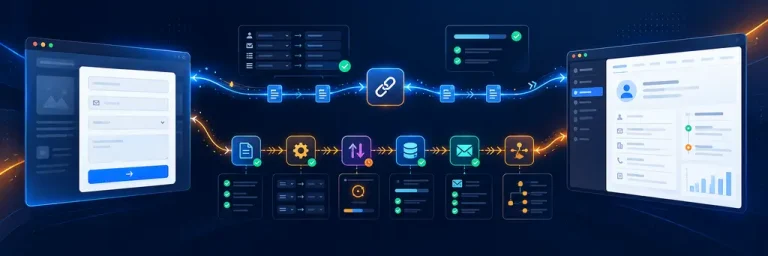
With FormCourier CRM Pro, the process looks like this:
- A visitor submits the selected WordPress form.
- The plugin receives the available field values.
- The configured mapping between form fields and CRM fields is applied.
- The data is processed using the selected mode.
- The information is sent to the external system.
This type of CRM integration is especially useful because it reduces the number of intermediate steps. An employee no longer needs to find a new inquiry first and then re-enter the name, phone number, email address, and message.
Monitoring the technical side of the process is also important. FormCourier CRM Pro supports logs, diagnostic information, a queue, and retry attempts – these tools help determine what happened to a submission if the data was not processed as expected.
At the same time, automation should not be understood as a guarantee that every external system will always be available. A CRM API may temporarily return an error, and connection settings may change. That is why logging and diagnostic tools are an important part of a reliable integration.

How to Connect a Website to a CRM for Automatic Data Transfer
CRM integration with a website starts with identifying the specific data source. In FormCourier CRM Pro, you need to select a supported form plugin and one form whose submissions should be sent to the connected system.
The plugin supports Contact Form 7, WPForms, Fluent Forms, Forminator, Ninja Forms, and Gravity Forms. Available CRM integrations include HubSpot, Bitrix24, Zoho CRM, Pipedrive, NetHunt, KeyCRM, SalesDrive, and KeepinCRM.
After selecting the system, enter the required connection details. There is no universal authentication method for all CRMs: depending on the specific system, API keys, tokens, webhook URLs, or other required parameters may be used.
The next step is field mapping. For example:
- Name → name
- Phone → phone
- Email → email address
- Message → message
After that, choose the data processing mode: immediate delivery, background processing, or a queue.
If needed, you can also configure UTM parameters, gclid, and fbclid. Their processing depends on the configuration and is not enabled automatically in every scenario.
In this way, CRM and website integration turns two separate operations – receiving a form submission and transferring its data – into a single automated process.
FormCourier CRM Pro has one important limitation: it works with one selected form and one CRM at a time. The plugin is not designed to route multiple forms to different systems in parallel or send one form to several CRMs simultaneously.
How to Monitor Submission Processing and Delivery
Even after automation is configured, you still need a way to determine whether an inquiry was processed successfully. This is especially important when using background processing or a queue, where delivery may not happen at the exact moment the form is submitted.
For monitoring, FormCourier CRM Pro provides:
- connection testing;
- logs;
- diagnostic information;
- a queue;
- retry attempts.
That is why a CRM for handling inquiries should be considered separately from the integration mechanism. FormCourier CRM Pro is responsible for delivering the information, while further processing of the inquiry is handled by the selected system.
When setting up CRM integration, it is useful to test the entire workflow with a test form submission. It is not enough to confirm that the connection has been established – you also need to check whether real test values appear in the correct fields.
For example, after a test submission, you should check:
- whether the name is correct;
- the phone number;
- the email address;
- the message text;
- any additional mapped values.
If a queue is used, you need to take the selected processing mode into account and check the result of the corresponding task.
How to Verify That Submissions Are Actually Reaching the CRM
Once setup is complete, CRM integration should be tested in practice. It is best to use a test submission with easily recognizable values so you can identify it in the external system without any confusion.
A convenient way to test the integration is to follow these steps:
- Make sure the connection details are entered correctly.
- Test the connection using the plugin’s tools.
- Submit the selected WordPress form.
- Find the test inquiry in the CRM.
- Compare the transferred values with the form fields.
- If there is a problem, review the logs and diagnostic information.
- If a queue is used, check the result of its processing.
This type of verification is especially important after changing API credentials, the form itself, or the field mapping. Even a previously working CRM system integration may need to be tested again after configuration changes.
Logs and diagnostics help monitor the technical side of data delivery. They do not replace CRM workflows and do not turn FormCourier CRM Pro into a standalone inquiry management system.
 FAQ
FAQ